Lets Recap!
In the last blog, we worked on a simple mini project in Adobe Illustrator. Bloop used just 8 easy steps demonstrating the magic of hands on practice projects by creating your first logo.
Now let’s dive into today’s discussion and discuss some cool tips and shortcuts that will elevate your design journey and will supercharge your creative workflow.
Photoshop Pro Tips and Tricks
- Custom Brushes for Added Flair
Don’t limit yourself to Photoshop’s preset brushes; instead, install custom brushes to open up new possibilities! To import new brushes, go to your Brushes panel, click the Gear symbol, and pick “Import Brushes.” With thousands of brush packs available online, you will never run out of creative ideas.
- Organize Your Layers Like a Pro
Name your layers and use groups; it’s a game changer! Keeping your workstation clean and organized not only improves productivity but also facilitates collaboration. Furthermore, labeling your layers ensures that anyone else working on your files can quickly understand and edit them. Trust us: it’s worth the extra work.
- Texture Magic for Depth and Dimension
Textures add flair to your designs! Textures may add depth and character to your artwork, transforming it from flat to amazing. Simply discover or download texture packs online, import them into Photoshop, then experiment with blending modes and opacity to achieve the desired appearance.
- Unlock the Power of Guides
Creating guides in Photoshop is simple: just click and drag on the side rulers to define your guides. Guides are useful for aligning pieces and ensuring continuity in your design. If you can’t see the rulers, press Control-R to bring them up. Easy easy!
- Maximize Your Undo Potential
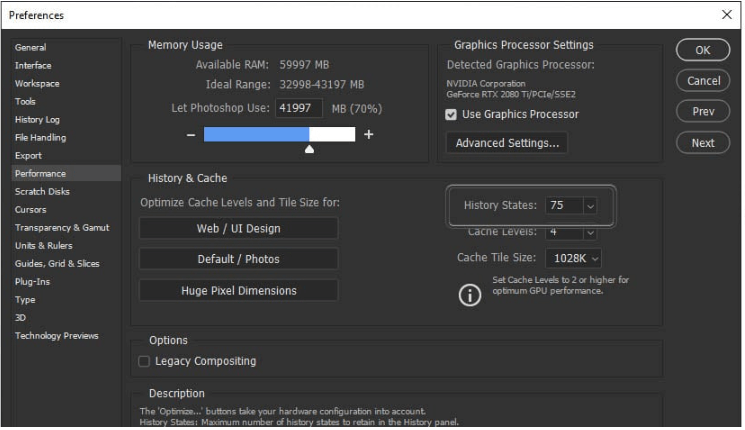
Ever wished for one more undo? Photoshop allows you to have up to 1,000! Simply navigate to Edit > Preferences > Performance to change your History States. Pro tip: For optimum performance, keep them at 75 or lower.
Illustrator Insider Tips and Shortcuts
- Select All Items on a Layer in a Flash
Save time and hassle by selecting all items on a layer with a simple shortcut:
– Mac: Option+Click layer name
– Windows: Alt+Click layer name
- Duplicate Your Artwork Effortlessly
Duplicate elements with ease using this handy shortcut:
– Mac: Option+drag
– Windows: Alt+drag
- Scale Proportionally for Perfect Designs
Maintain proportions while scaling objects with this time-saving shortcut:
– Mac: Shift+drag bounding box
– Windows: Shift+drag bounding box
- Streamline Your Workflow with Custom Keyboard Shortcuts
Navigate to Edit > Keyboard Shortcuts to customize your Illustrator shortcuts based on your workflow preferences. From there, you may create new shortcuts, modify existing ones, and export your customized shortcuts for future use.
With these tips, techniques, and shortcuts at your disposal, you’ll be well on your way to being a Photoshop and Illustrator expert. So go ahead, express your imagination and let your designs shine!